> ## Documentation Index
> Fetch the complete documentation index at: https://docs.betterfloat.com/llms.txt
> Use this file to discover all available pages before exploring further.
# Activate notifications on CSFloat/Skinport
> How to use the notification feature on CSFloat/Skinport
## Step 1: Make sure you have the pro plan
Make sure you have the pro plan activated. The notification feature is only available for users with the pro plan.
## Step 2: Navigate to Skinport / CSFloat
Navigate to the Skinport LIVE-page or the CSFloat website. Activate the LIVE-mode on Skinport or auto-refresh on CSFloat. Be aware that these have to stay active for the notifications to work.
CSFloat: You can filter shown items (including notifications) by using the site's filter options.
## Step 3: Setup the notifications
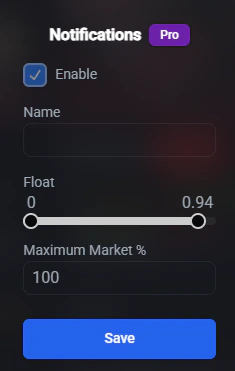
Adjust the notification settings to your liking. You can choose between the following options:
* name: Optional, can be left empty. The name of the item. Can be any part of the full item name. E.g. "Karambit", "Case Hardened" or "Karambit | Case Hardened"
* float: Adjust the slider according to the float of the items. Using anything other than 0-1 means only skins with floats will be included.
* maximum market %: The maximum market percentage you want to be notified about. E.g. 90 means you will only be notified about items that at maximum 90% Buff / Steam / UU market price. The chosen provider equals the one selected in the extension settings.
Make sure to save your settings by clicking on the `Save`-button.
 ## Step 4: Wait for notifications
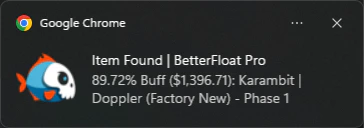
Wait for new items to be listed. You will be notified about items that match your settings. Click on the notification to open the item in a new tab.
## Step 4: Wait for notifications
Wait for new items to be listed. You will be notified about items that match your settings. Click on the notification to open the item in a new tab.