> ## Documentation Index
> Fetch the complete documentation index at: https://docs.betterfloat.com/llms.txt
> Use this file to discover all available pages before exploring further.
# Automate your CSFloat sell pricing
> How to use the sell pricing feature on CSFloat
## Step 1: Make sure you have the pro plan
Make sure you have an active pro plan. The sell pricing feature is only available for users with the pro plan. You can upgrade to the pro plan [here](https://betterfloat.com/pricing).
## Step 2: Make sure the Sell Pricing is enabled
Open the extension popup and make sure the Sell Pricing for CSFloat is enabled.
 ## Step 3: Navigate to CSFloat
Navigate to [https://csfloat.com/sell](https://csfloat.com/sell)
## Step 3: Setup the sell pricing
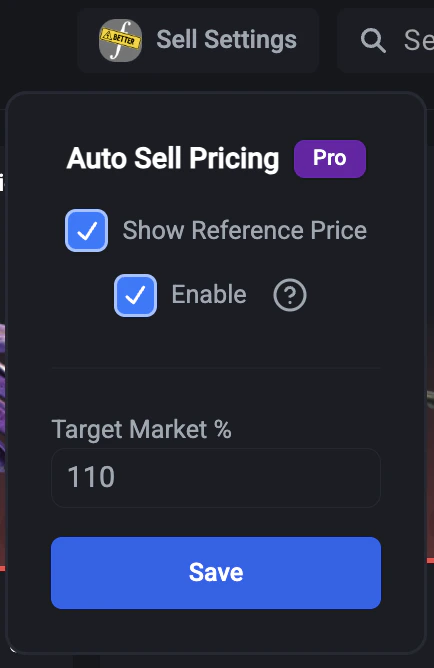
Adjust the sell pricing settings to your liking. The following options are available:
* Enable Sell Pricing: Enable the sell pricing feature.
* Show Reference Price: Display the reference market prices directly in the sell list. Usable independently of the sell pricing feature.
* Target Market %: The maximum market percentage you want your items to be priced at. Always refers to the main reference price used on CSFloat.
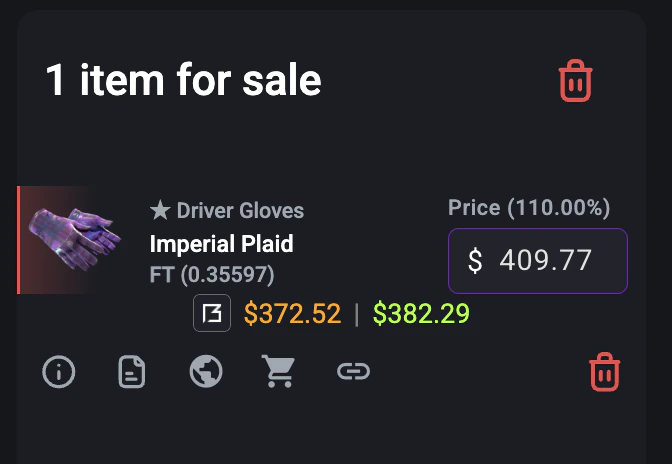
The extension will automatically calculate the current market percentage and display it above the price input field.
Make sure to save your settings by clicking on the `Save`-button.
## Step 3: Navigate to CSFloat
Navigate to [https://csfloat.com/sell](https://csfloat.com/sell)
## Step 3: Setup the sell pricing
Adjust the sell pricing settings to your liking. The following options are available:
* Enable Sell Pricing: Enable the sell pricing feature.
* Show Reference Price: Display the reference market prices directly in the sell list. Usable independently of the sell pricing feature.
* Target Market %: The maximum market percentage you want your items to be priced at. Always refers to the main reference price used on CSFloat.
The extension will automatically calculate the current market percentage and display it above the price input field.
Make sure to save your settings by clicking on the `Save`-button.
 ## Step 4: Sell an item
You are responsible for the price you list your items at. The extension is not responsible for any losses you may incur. Please check the price you list your items at before selling.
Click on the `Sell Item`-button to add items to your sell list. The extension will automatically reprice your item according to the settings you have set.
Successfully repriced items will receive a purple border around the price input field.
## Step 4: Sell an item
You are responsible for the price you list your items at. The extension is not responsible for any losses you may incur. Please check the price you list your items at before selling.
Click on the `Sell Item`-button to add items to your sell list. The extension will automatically reprice your item according to the settings you have set.
Successfully repriced items will receive a purple border around the price input field.